
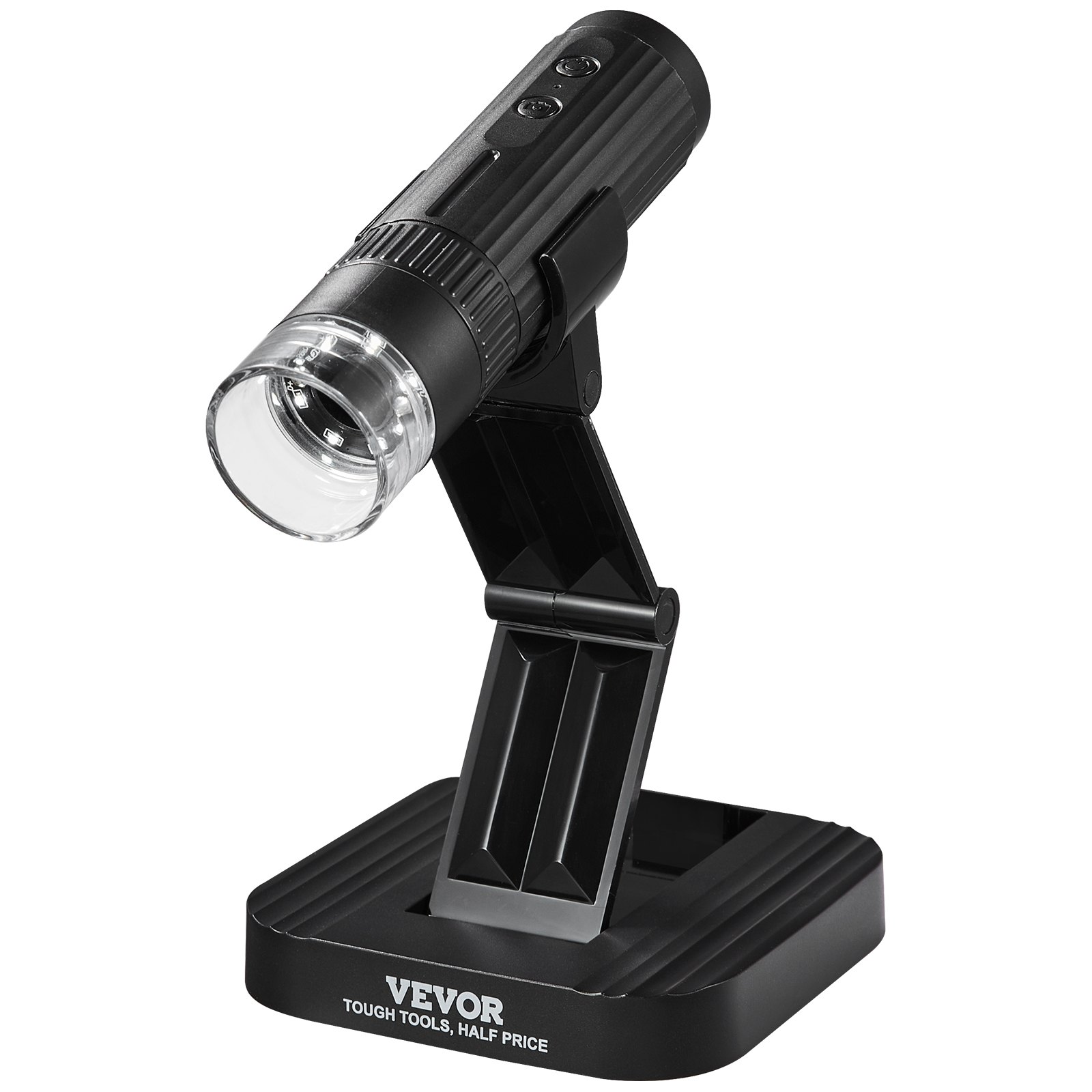
Unlock the full potential of your VEVOR Wireless Digital Microscope 50X-1000X 1080P HD WiFi Portable Handheld Mini Coin Microscope with Adjustable Stand USB Microscope Camera Magnifier Compatible with iPhone, iPad, Android Phone & PC with our comprehensive product manual. Whether you are a novice or a seasoned professional, our detailed guide is designed to provide step-by-step instructions for setup, usage, and troubleshooting.
Inside the manual, you will find easy-to-follow instructions on connecting and operating your digital microscope with various devices, ensuring a seamless experience every time. The manual covers everything from basic setup to advanced optimization techniques, allowing you to maximise your microscope’s capabilities. Learn how to adjust the stand for optimal viewing, capture high-definition images and videos, and utilize the WiFi connectivity for real-time observations on your smartphone or computer.
Our user-friendly manual is valuable for educators, hobbyists, and professionals, providing clear and concise information to enhance your microscopy experience. Download today’s VEVOR Wireless Digital Microscope manual and explore the microscopic world with confidence and precision.
Wireless Digital Microscope Manual
W1A
Read Me First
- Thank you for purchasing the WTM-W1-A WiFi digital microscope.
- Please read this user manual carefully and keep it for future reference.
- Pay attention to protect the lens part. Close the lens lid after using to avoid entering dust or strange objects.
- The microscope can be used by hand or inserted as a desktop, with attention to avoid damage to the components.
- When placing items, place them directly below the centre of the lens as much as possible. Avoiding seeing objects clearly can lead to a bad experience.
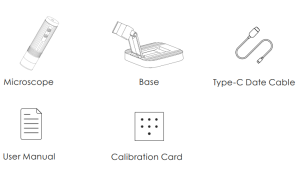
Packing List
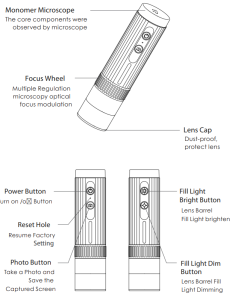
Parts Description
Before using the microscope, secure your hands or use it on the desktop.
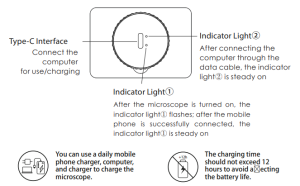
During the charging process, if the microscope shell and the battery are slightly heated, please rest assured that this is normal.
Detailed Operation of The Wireless Digital Microscope
How to zoom in and focus?
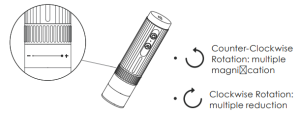
Work with a cell phone.
Download the App
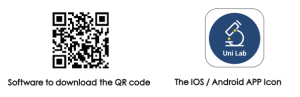
Scan the QR code, click download and install.
The mobile terminal is the iOS system, and you can search for “Uni Lab” at APP Store for download.
Operating steps
- Step 1 Turn on the microscope
Long-press the power button for 3s, and the blue light flashes under the button after turning on, indicating that the app has not been connected yet.
- Connect the microscope to Android / iOS
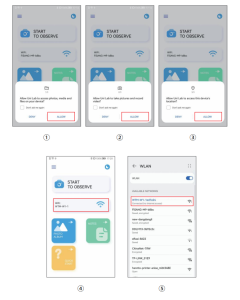
① Open the Uni Lab APP, click WiFi, jump to the WiFi connection page of the Android / IOS device, select the corresponding network name of the product “WTM-W1-XXXXXX” (network without encryption)
② Connect to the network. If the connection confirmation prompt appears, please click “Keep Connected” Android version) / click “OK”
③ After the connection is successful, the microscope turns on. When you return to the app, you can see the image on your phone.
(Note: Please open the phone/tablet location permission when the APP is connected to the microscope.)
Run the APP, and follow the indicated operation steps. (Follow the red box instructions to make the selection)
Introduction of the APP
- APP Homepage
Because of the mobile phone model version is different, the pictures are for reference only
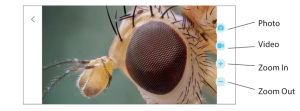
Photo: Select a photo mode
Video: Select the recording mode
Zoom in: Click to zoom in on the screen (use when the screen is too small)
Zoom Out: Click to zoom out the screen (used when the screen is too large, the default is the smallest each time it is opened)
Work with Windows
- Software download
The device camera button cannot be used; it can only be realized through the software’s Photo recording function
②For Windows 7 and Windows XP, download the software from the website:http://www.weetool.net
①For Windows 8, Windows 10 or higher system, search “Uni Lab”(as shown in “ ”) in the Microsoft S
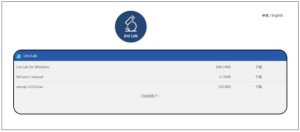
Operating steps
Step 1: With the microscope turned off, connect the microscope to the computer using a data cable.
Step 2: Turn on the microscope, run the software, select the corresponding device name, you can see the image on the computer, and take photos and videos through the software.
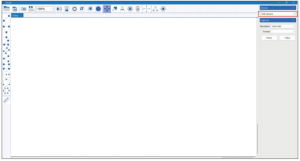
Work with Mac/iMac
The device camera button cannot be used; it can only be realized through the software’s Photo recording function.
Software download
For Mac OS x 10.5 or higher systems, use the default software.
Operating steps
Step 1: With the microscope turned off, connect the microscope to the computer using a data cable.
Step 2: Turn on the microscope, run Photo Booth, you can see the image on the computer, and take photos and videos through Photo Booth.
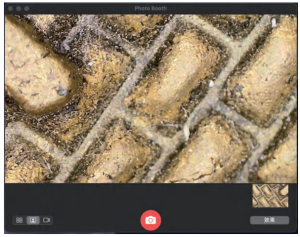
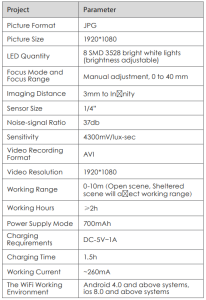
Product Parameters
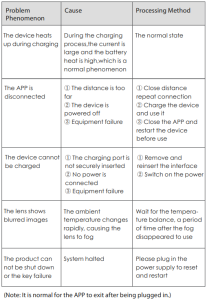
Troubleshoot the Wireless Digital Microscope
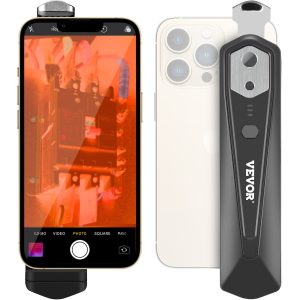
Recommended For Your Project
VEVOR Wireless Digital Microscope 50X-1000,X 1080P HD WiFi Manual



Reviews
There are no reviews yet.