
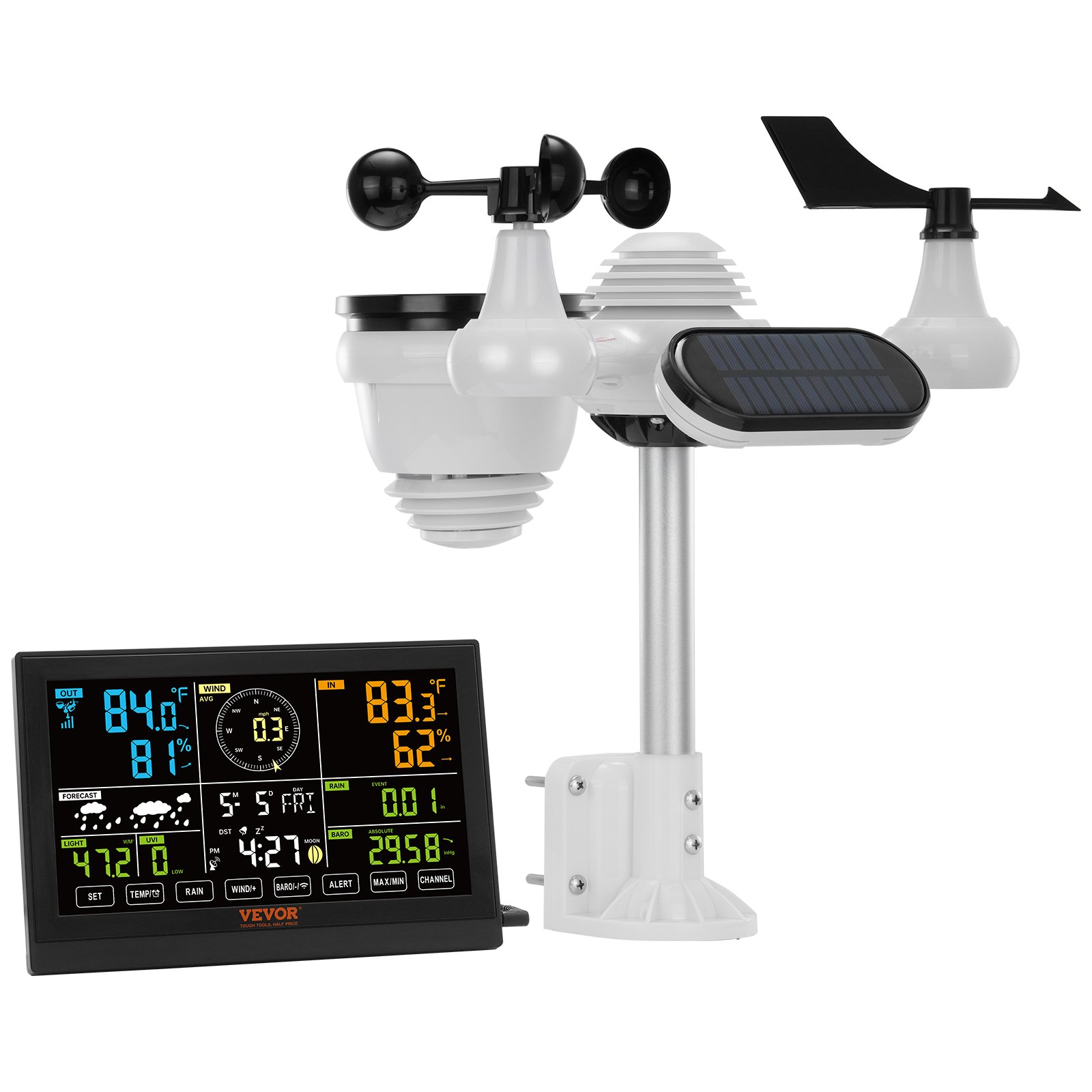
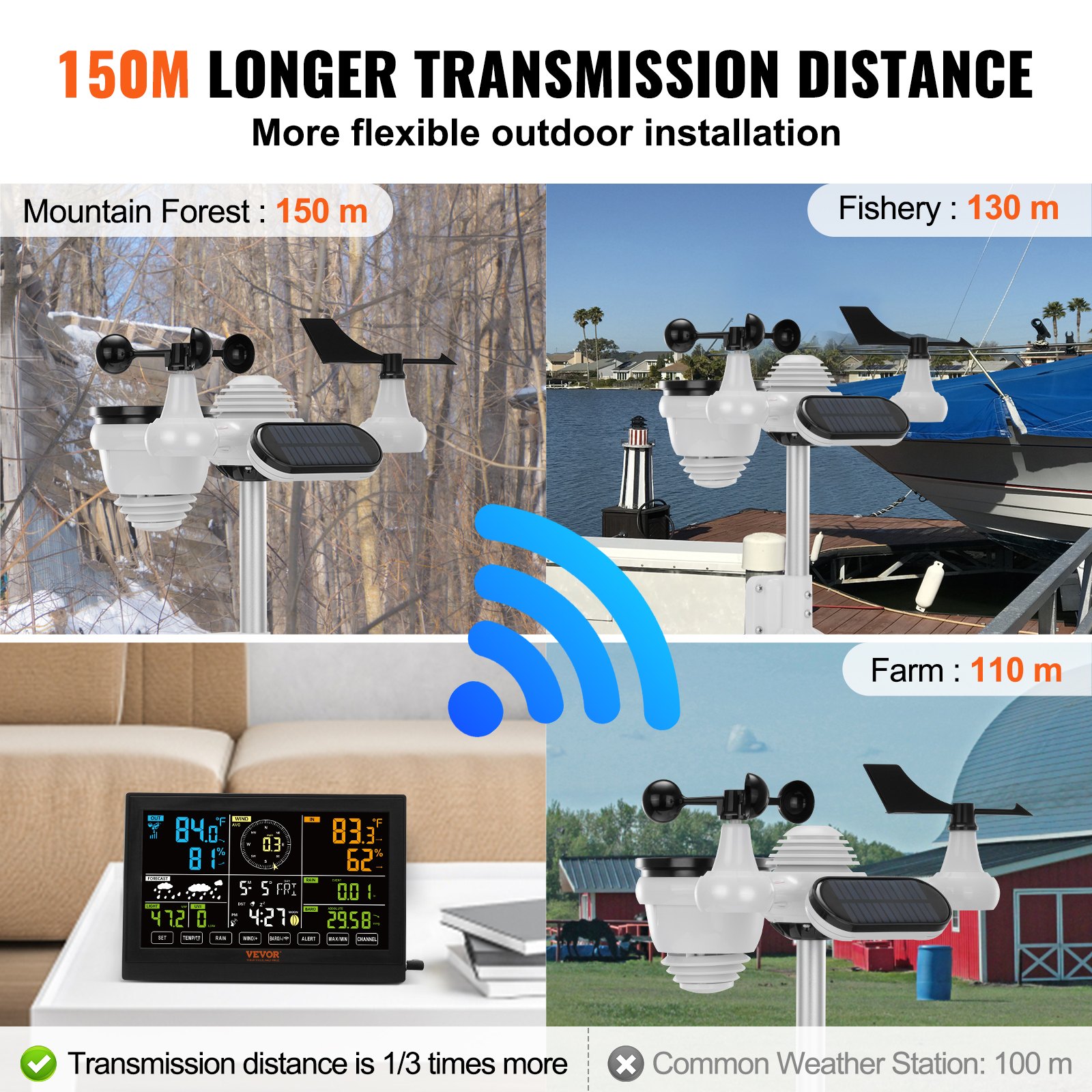
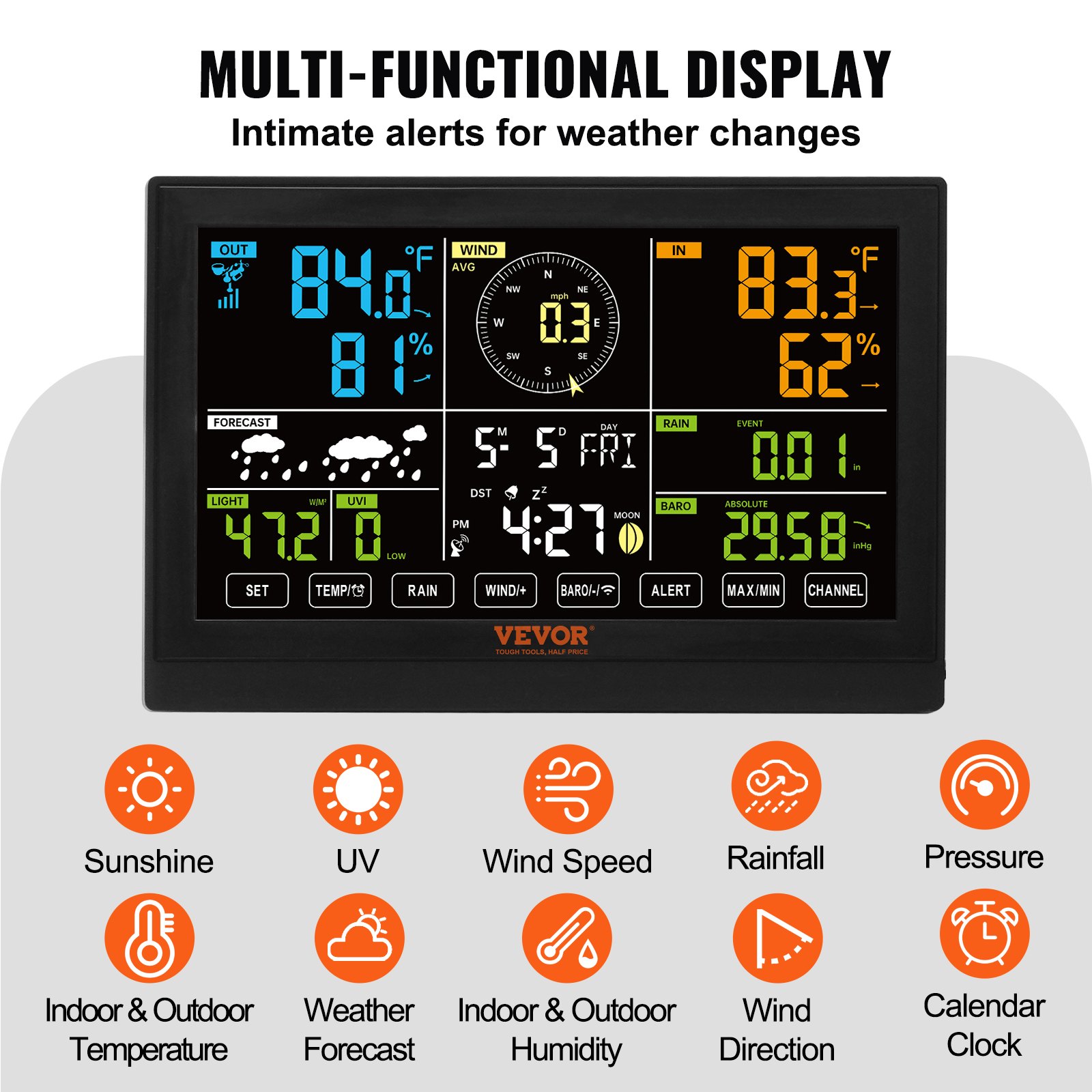
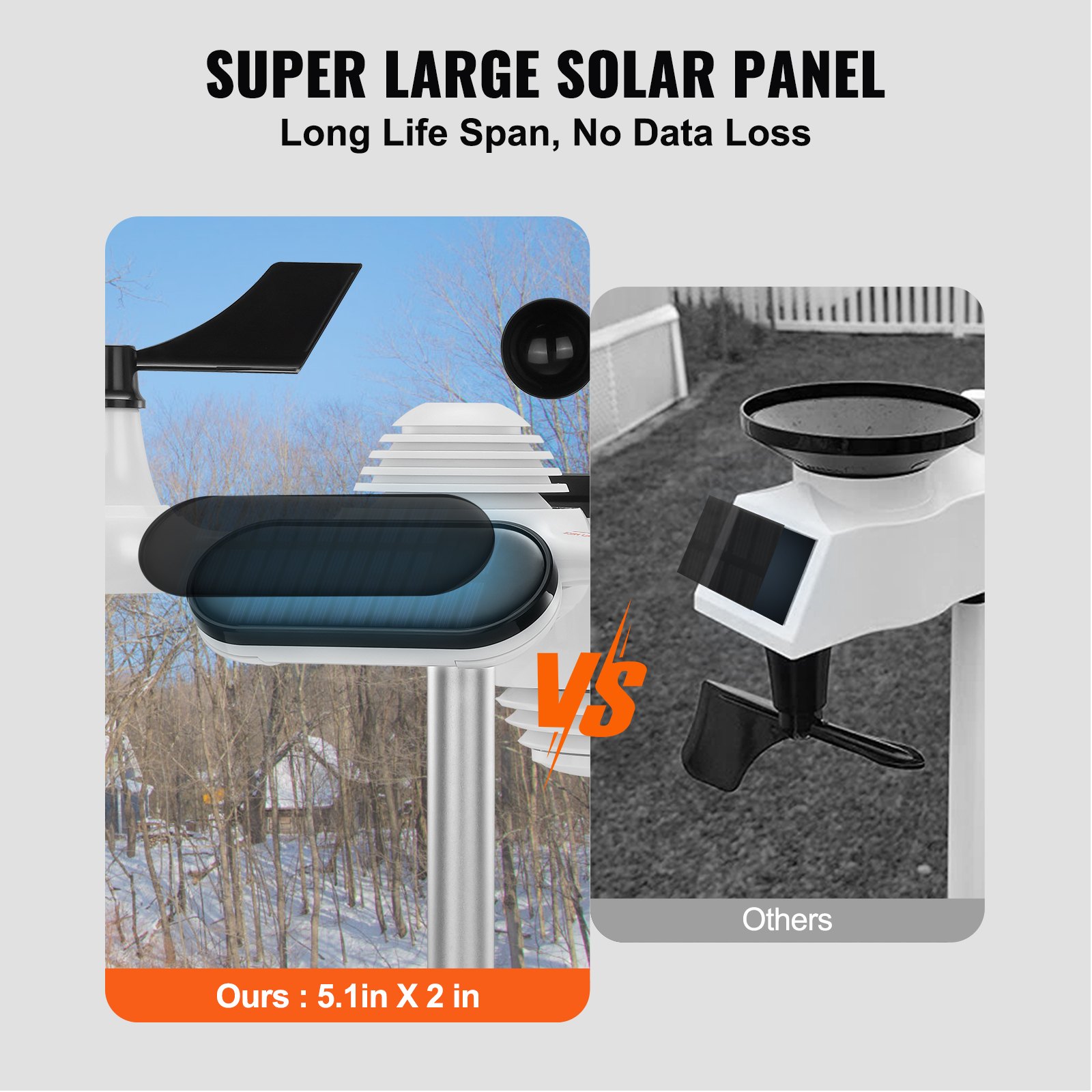
Unlock the full potential of your VEVOR 7-in-1 Wireless Weather Station with our comprehensive product manual download. Our detailed manual offers step-by-step instructions to ensure seamless setup and optimal use of your 7.5-inch Large Color Display home weather station. This manual covers everything from indoor and outdoor temperature monitoring to humidity, wind speed/direction, rainfall, UV index, and forecast data.
Troubleshoot any issues effortlessly with our easy-to-follow guide, and enjoy the peace of mind from having alarms and alerts set up correctly.
Elevate your weather tracking experience with our user-friendly, professional guide, which will help you get the most out of your VEVOR weather station.
MODEL: YT60231
VEVOR WIRELESS WEATHER STATION FEATURES
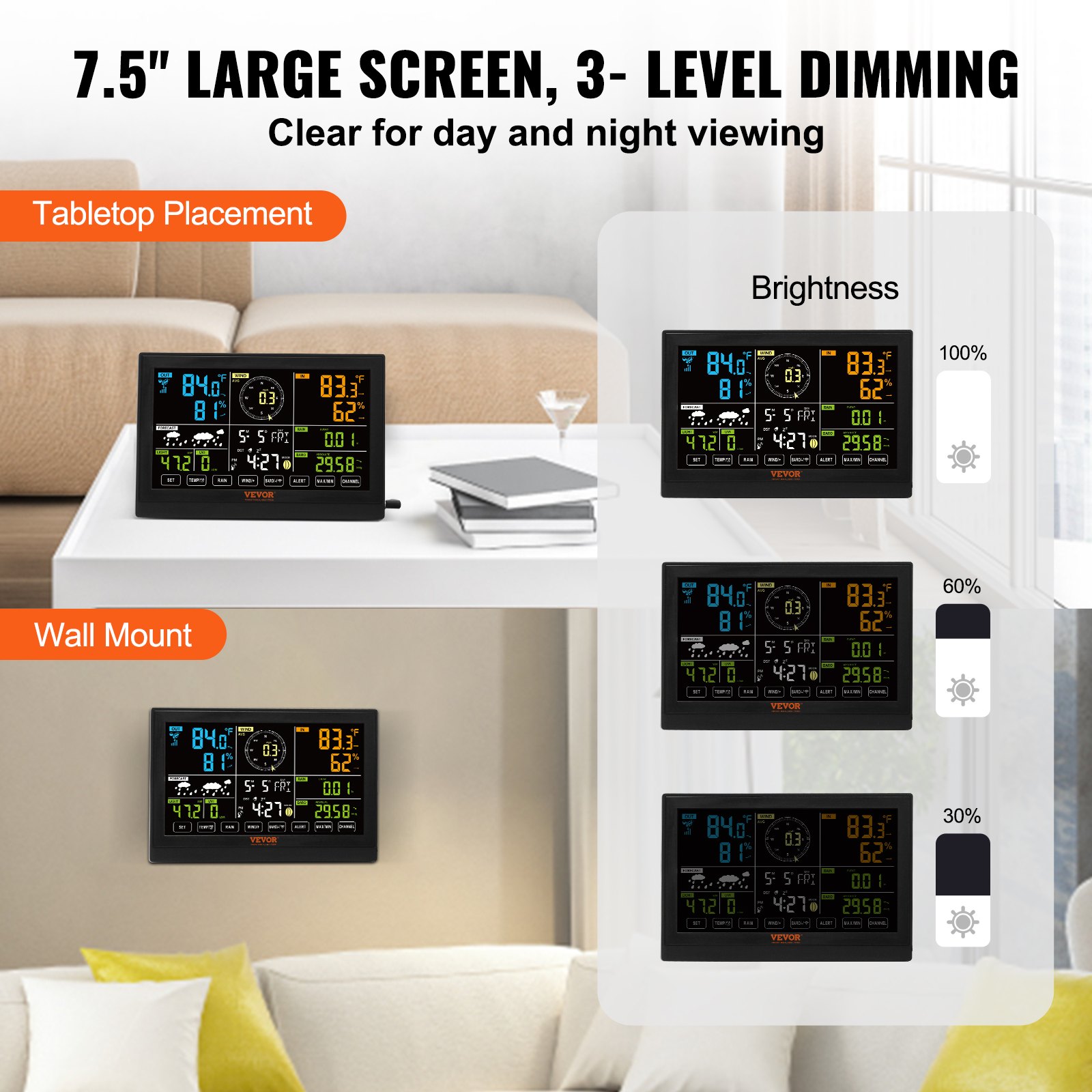
- Colorful and big digit display with super bright backlight.
- 9 functional buttons: SET, TEMP/ALARM, RAIN, WIND/+, BARO/-/RCC, ALERT, MAX/MIN,
- CHANNEL, LIGHT/ SNOOZE
- Self-setting accurate atomic time function.
- Alarm with snooze function.
- Daylight Saving Time (DST) function.
- Time zone: EST, NST, AST, HST, AKT, PST, MST, CST.
- Moon Phase.
- Indoor & outdoor temperature (°C/°F) & humidity readingswithtrend.
- 4-level brightness of backlight.
- Hourly, Daily, Weekly, Monthly, Total rainfall and Rainfall rate in the past hour.
- Average wind speed, gust wind speed and wind direction displays.
- Absolute and relative barometric pressure display a trend.
- Light intensity and UV index display.
- Weather index display: Feel likes, Wind Chill, Heat index. Dewpoint.
- Weather Forecasting.
- Max/Min reading.
- Weather alert settings.
PACKAGE CONTENTS
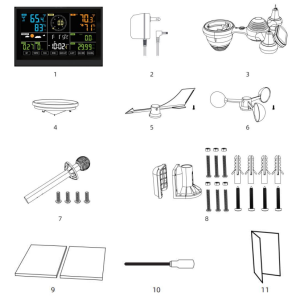
- Weather station
- Adapter
- Wireless 7-in-1 outdoor sensor
- Funnel
- Wind direction vane with 1 screw
- Wind speed cups with 1 screw
- Mounting pole with 4 screws
- Mounting brackets with 6 screws
- Rubber pads X 2
- Screwdriver
- User guide
NOTE: 4 extra screws for wind direction vane and wind speed cups.
WIRELESS WEATHER STATION OVERVIEW
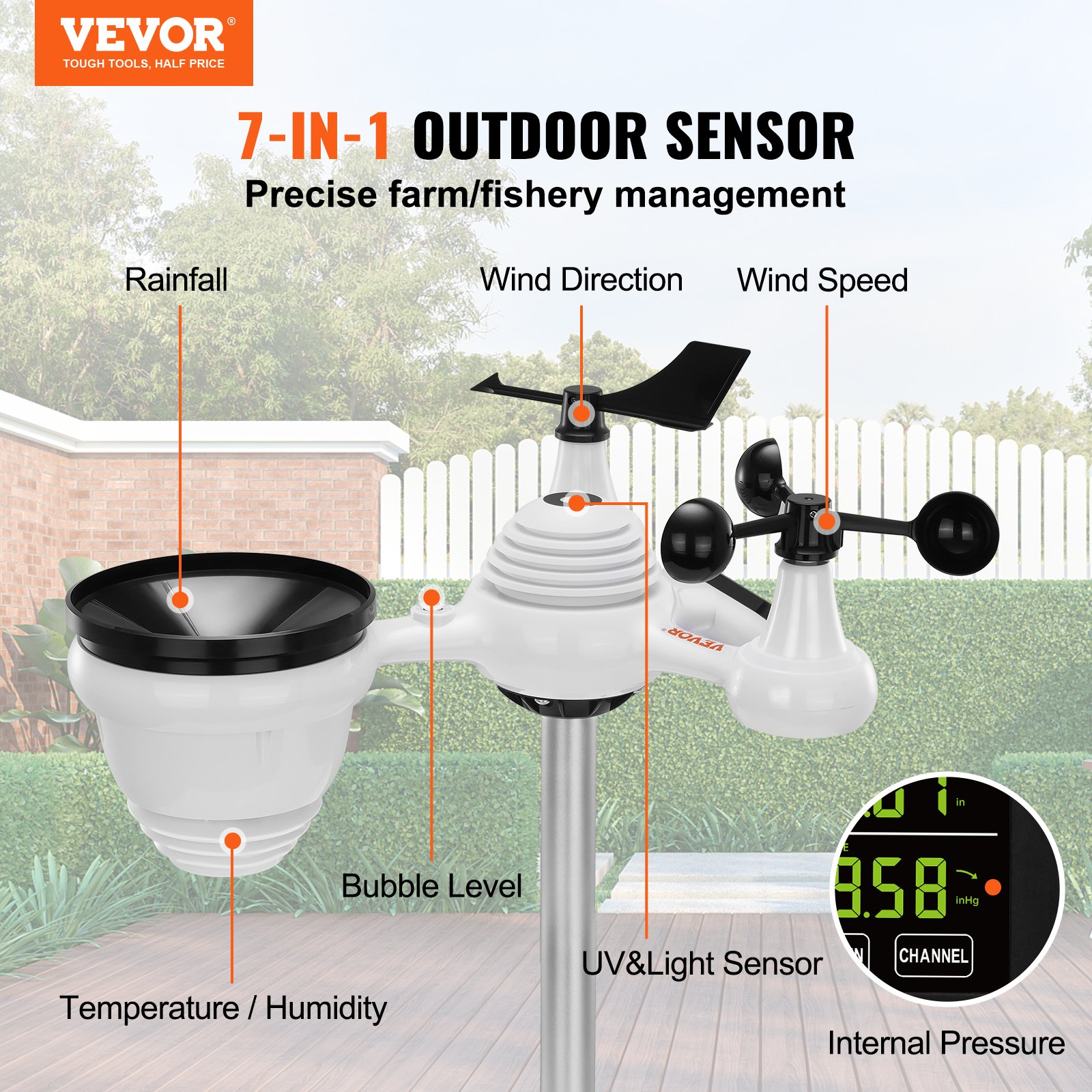
WIRELESS 7-IN-1 OUTDOOR SENSOR
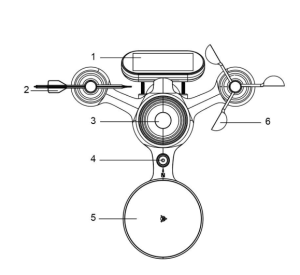
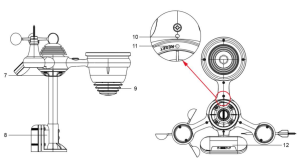
- Solar panel
- Wind direction vane
- UV/light sensor
- Bubble level gradienter
- Rain collector
- Wind speed cups
- Mounting pole
- Mounting brackets
- Hygro-Thermo sensor
- LED: Flashes when the unit transmits a reading
- RESET button
- Battery door
WIRELESS WEATHER STATION
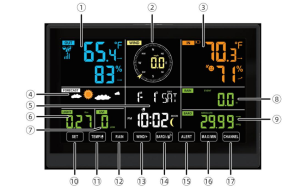
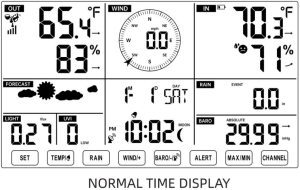
- Outdoor temperature/humidity reading, weather index
- Wind direction & speed
- Indoor temperature/humidity reading
- Weather forecast
- Time & date, moon phase, Weekday
- Light intensity
- UV index
- Rain
- Barometer
- SET button
- TEMP/ (ALARM) button
- RAIN button
- WIND/+ button
- BARO/-/ (RCC) button
- ALERT button
- MAX/MIN button
- CHANNEL button
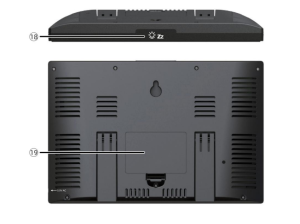
- LIGHT/ SNOOZE button
- Battery compartment (3 x AAA batteries, not included)
SETTING UP THE WIRELESS 7-IN-1 OUTDOOR SENSOR
The wireless weather station measures wind speed, wind direction, rainfall, UV, light intensity, temperature, and humidity.
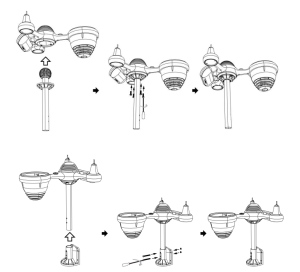
INSTALLING THE MOUNTING POLE AND BRACKET
- Secure the sensor onto a mounting pole and bracket (included) usingthescrews (included).
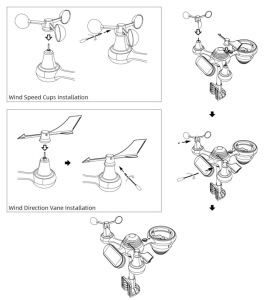
INSTALLING WIND SPEED CUPS AND WIND DIRECTION VANE
- Align the screw holes in the wind speed cups with the flat, vertical side of the metal rod.
- Insert the wind speed cups in the metal rod and screw on tight to lock it in place.
- Align the screw holes in the wind direction vane with theflat, vertical sideof the metal rod.
- Insert the wind direction vane in the metal rod and screw on tight to lock it in place.
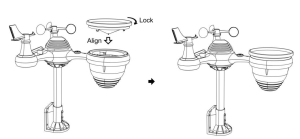
SETTING UP A RAIN COLLECTOR
- Align the notches on the funnel with the lock grooves inside the rain collector.
- Insert the funnel in the rain collector and screw on tight to lock it in place.
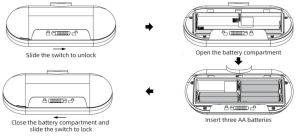
INSTALLING THE BATTERIES
- Slide the switch to unlock the battery compartment at the bottom of the solar panel.
- Insert three AA batteries (not included) according to the/- polarity labeled in the compartment.
- Lock the battery compartment back onto the compartment.
MOUNTING THE WIRELESS 7-IN-1 OUTDOOR SENSOR
- Pick a location for the 7-in-1 outdoor sensor with no obstructions.
- Tighten the mounting brackets to a surface/wall using four tappingscrews (included), or tighten the mounting pole to your existing mounting pole with four Φ5 Bolts and M5 Nuts assembly.
- Add rubber pads onto the mounting bracket before fastening the mounting bracket to the sensor.
- Make sure the rain collector faces north and the solar panel facessouthbefore fastening the screws (included).
- Please ensure that the sensor is fixed particularly tightly. Windy conditions cause the transmitter to shake and thus misread the rainfall data.
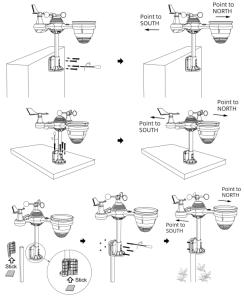
POINTING THE WIRELESS 7-IN-1 OUTDOOR SENSOR TO SOUTH (OPTIONAL)
The outdoor wireless weather sensor is calibrated to be pointed north for maximum accuracy. However, for your convenience, if you are a user located in the Southern Hemisphere, you can use the sensor with the rain collector pointing south.
Mount and install the wireless weather sensor with the rain collector pointing South, instead of North. (Please refer to MOUNTING THE WIRELESS 7-IN-1 OUTDOOR SENSOR.)
Select “STH” for the southern hemisphere in the clock setting mode. (Please refer to “setting the clock”)
NOTE: Changing the hemisphere setting will automatically switch the direction of the moon phases on display. Pointing the wireless weather sensor toward the south will allow maximum sunlight on the solar panel, especially during the winter season in the Southern Hemisphere.
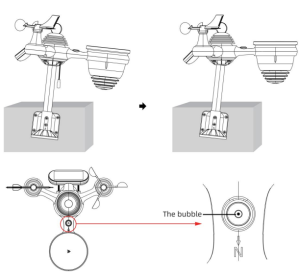
ADJUSTING THE 7-IN-1 WIRELESS SENSOR LEVEL
Use the bubble level indicator to ensure the wireless outdoor sensor is level. If it is not, the gain gauge, UV, and Light intensity will not measure correctly.
To adjust the level of the wireless outdoor sensor, loosen the screws on the mounting pole. Adjust the level so that the bubble is in the center of the bubble level indicator.
Tighten the screw of the mounting pole again.
SETTING UP THE WIRELESS WEATHER STATION
POWERING UP THE WEATHER STATION
- Plug the power adapter into the power jack in the back of the weather station. Insert 3 new AAA alkaline batteries (not included) for backup.
- Once the weather station is turned on, it will automatically enter pairing mode.
PAIRING THE WIRELESS 7-IN-1 SENSOR
- Once your wireless weather station powers on, it should automatically search for and connect to the wireless sensors. If it does not connect within the first 5 minutes, refer to the following section, “RE-PAIRING SENSOR.”
- The display’s temperature and humidity (outdoor) section shows an antenna icon scrolling.
- Once the pairing process is complete, the antenna icon will appear solid(not flashing), and the readings for outdoor temperature and humidity, wind speed, wind direction, UV, light intensity, and rainfall will appear in their designated sections of the LCD.
RE-PAIRING SENSOR
- If the connection fails or the weather station is reset, press and hold the 【CHANNEL】button for over 2 seconds to enter pairing mode. In that case, the weather station will re-register all the sensors already registered to it before (i.e., it will not lose the connection of the sensors you’d paired up before).
ATOMIC CLOCK RECEPTION
- After the RF connection is established or 5 minutes of pairing time, the weather station will automatically receive the atomic clock signal, and the RCC receiving dot icon will flash.
- The signal strength indication will be displayed when the weather station detects the atomic clock signal. The time and date will be updated when the atomic clock signal is received successfully.
- The weather station automatically begins searching the WWVB signal and updating the time daily at 1:00 a.m., 2:00 a.m., 3:00 a.m., 4:00 a.m., and 5:00 a.m.
- The Atomic Time tower icon will flash while searching and appear solid when connected.
- Put the weather station away from interference, such as electronic devices. (TV, computer, microwave, radio, etc.)
MANUAL ATOMIC CLOCK RECEPTION
- You can receive the atomic clock signal manually. In Normal display, press and hold the 【BARO/-/ 】button for over 2 seconds to receive the atomic clock signal manually.
- During atomic clock reception, press and hold the 【BARO/-/ 】button for over 2 seconds to exit atomic clock reception. For information about WWVB, visit www.nist.gov/pml/div688/grp40/wwvb.cfm
NOTE: The backlight is temporarily turned off during RCC reception to improve receiving performance. After the RCC reception is finished, the backlight will resume.
WIRELESS WEATHER STATION OPERATING INSTRUCTIONS
CLOCK
Setting the Clock in the wireless weather station
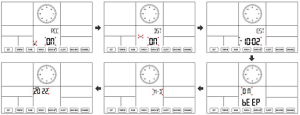
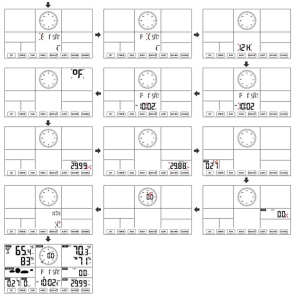
In Normal time display, press and hold 【SET】over 2 seconds to enter time setting mode. Press and release 【WIND/+】and【BARO/-/】to adjust the values. Hold 【WIND/+】and 【BARO/-/ 】over 2 seconds to adjust the values rapidly. Press and release 【SET】to confirm and move to the next item. To exit the setting mode at any time, press the 【LIGHT/SNOOZE】button.
Setting Order
- RCC On/Off
- DST On/Off
- Time Zone
- BEEP On/Off
- M-D/D-M Format
- Year
- Month
- Date
- 12/24 Hour Format
- Hour
- Minute
- TemperatureUnit
- Pressure Unit
- Relative Pressure Calibration
- Light Intensity Unit
- Rainfall Unit
- Wind Speed Unit
- Hemisphere
- End of setting
- Press and hold the 【SET】button to enter the settings. RCCONflashes.Press 【WIND/+】 or 【BARO/-/ 】to changebetweenRCCon and RCC off. Press 【SET】to select DST on/off.
NOTE: If RCC OFF is selected, you will skip the DST and timezone settings and move to the BEEP setting.
- When DST flashes, press 【WIND/+】or 【BARO/-/ 】 to change between DST on and DST off. Press 【SET】toselect timezone.
- When Time Zone flashes, press 【WIND/+】or 【BARO/-/】to set time zone. Press 【SET】to select beep sound on/off when pressing any button.
NOTE: There are a total of 8 time zones. (EST = Eastern, NST=Newfoundland, AST= Atlantic, HST= Hawaii, AKT= Alaska, PST=Pacific, MST= Mountain, CST= Central)
- When Beep On flashes, press 【WIND/+】or 【BARO/-/】to turn the beep sound on/off, press 【SET】to select date format.
- When M–D flashes, press 【WIND/+】or 【BARO/-/ 】 to switch between M-D and D-M date format. Press 【SET】toselectyear.
- When the year flashes, press 【WIND/+】or 【BARO/-/ 】 to adjust the calendar year. Press 【SET】to select the month.
- When the month flashes, press 【WIND/+】or 【BARO/-/ 】to adjust the calendar month. Press 【SET】to select the date.
- When Day flashes, press 【WIND/+】or 【BARO/-/ 】 to adjust the calendar day. Press 【SET】to select 12/24-hour format.
- When 12 H flashes, press 【WIND/+】or 【BARO/-/ 】 to change between 12-hour and 24-hour format. Press 【SET】toselecthour.
- When the hour flashes, press 【WIND/+】or 【BARO/-/ 】to adjust the hour. Press 【SET】to select a minute.
- When minute flashes, press 【WIND/+】or 【BARO/-/】to adjust the minute. Press 【SET】to select the temperature unit. 12.) When ℉ flashes, press 【WIND/+】or 【BARO/-/ 】tochange between ℉ and ℃. Press 【SET】to select the pressure unit.
- When the pressure unit flashes, press 【WIND/+】or 【BARO/-/】 to change between hPa, inHg, and mmHg. Press 【SET】toselectrelative pressure calibration. 14.) When Relative Pressure flashes, press 【WIND/+】or【BARO/-/ 】 to adjust the relative pressure. Press 【SET】toselectLight intensity unit. 15.) When the Light intensity unit flashes, press 【WIND/+】or 【BARO/-/ 】 to change unit between lux, fc, and w/m2. Press【SET】to select the rainfall unit.
- When Rain unit flashes, press 【WIND/+】or 【BARO/-/】to change unit between in and mm. Press 【SET】toselect windspeed unit.
- 17.) When the Wind speed unit flashes, press 【WIND/+】or【BARO/-/ 】 to change the unit between in and mm. Press【SET】to select hemisphere.
- When NTH flashes, press 【WIND/+】or 【BARO/-/ 】to change hemisphere between NTH (northern) and STH(southern). Press【SET】to save and exit the settings. It will return to the normal mode display.
NOTE: If there is no valid operation within 20 seconds, it will automatically return to the normal display mode from the setting mode. While adjusting settings, you can press【LIGHT/SNOOZE】button to return to normal display mode.
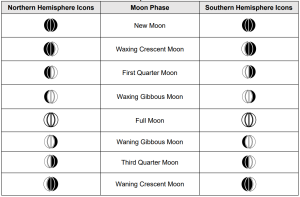
Moon Phase
The display console calculates the moon’s phase according to your time, date, and time zone. The table below explains the corresponding phases and their icons for both the northern and southern hemispheres.
Setting the Alarm in the Wireless Weather Station
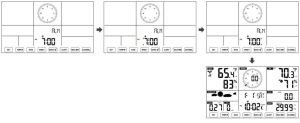
- In normal time display, press the 【SET】button to switch the display alarm time (alarm time mode).
- In the alarm time display, press and hold the 【SET】buttonover button for 2 seconds to enter alarm setting mode. The hour of the alarm starts to flash.
- Press 【WIND/+】button or 【BARO/-/ 】buttontoset requiredalarm hours. Hold 【WIND/+】button or 【BARO/-/ 】 button to adjust alarm hours quickly.
- Press the 【SET】button to select the minute of the Alarm. Minuteof alarmstarts to flash.
- Press 【WIND/+】button or 【BARO/-/ 】buttontosetrequired alarm minutes. Hold 【WIND/+】button or 【BARO/-/】button to adjust alarm minutes quickly.
- Press the 【SET】button to save all settings and exit to normal display mode.
NOTE: If there is no valid operation within 20 seconds, it will automatically return to the normal display mode from the setting mode. While adjusting settings, press the 【 LIGHT/SNOOZE】button to return to normal display mode.
Deactivate/Activate Alarm
- In alarm time display, press the 【TEMP/ 】button to select the alarm or off .
- If the alarm is on, its corresponding alarm icon will be shown on the display.
- Press any buttons except the 【LIGHT/SNOOZE】button when the alarm is ringing to stop the alarm signal. It is not necessary to reactivate the alarm. It will ring again this time tomorrow.
Snooze Function
Press the 【 LIGHT/SNOOZE】button when the alarm rings to pause it. The snooze indicator icon will keep flashing. The alarm will resume after 5 minutes.
TEMPERATURE
Temperature/Humidity Trend
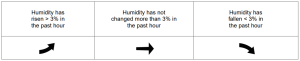
Tendency arrows allow you to determine whether temperature and humidity are rising and falling quickly in a one-hour update period.
Temperature Trend

Humidity Trend
Indoor Comfort Index
The indoor comfort displays a pictorial representation based on the indoor air temperature and humidity levels to determine the approximate comfort level.

PRESSURE
Barometer Pressure Display
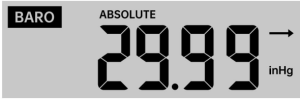
Press the 【BARO/-/ 】button in normal mode to switch between absolute and relative pressure.

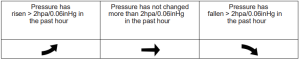
Pressure Trend
Tendency arrows allow you to quickly determine if pressure is rising or falling in a one-hour update period.
WIND
Wind Display
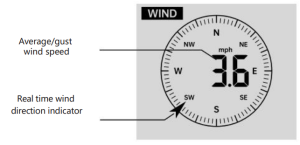
Selecting Wind Display Mode
In normal display mode, press the 【WIND/+】button to switch between the current average wind speed, gust wind speed, and wind direction.
RAIN
Rainfall Display
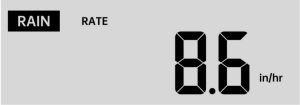
The Rainfall shows information regarding the rainfall and rain rate. Select the Rainfall Display Mode
In normal display mode, press the 【RAIN】button to switch between Rain Rate, Rain Event, Rain Hourly, Rain Daily, Rain Weekly, Rain Monthly, and Rain Total.
Increments of Rain Definition
- Rain Rate: current rainfall rate in the past hour. Rain event: continuous rain, which resets to zero if rainfall accumulates less than 10mm (0.039 in) in 24 hours.
- Daily Rain: Total rainfall since midnight (00:00)
- Weekly Rain: Total rainfall for the current calendar week, and reset on Sunday morning at midnight (Sunday through Saturday).
- Monthly Rain: Total rainfall for the current calendar month, and reset on the first day of the Month.
- Total Rain: Total rainfall since the last reset.
Reset the Total Rainfall Record
In normal display mode, press and hold the 【RAIN】buttonover2seconds to reset the rain record.
NOTE:
Resetting the weekly rain also resets the daily rain. Resetting the monthly rain also resets the daily and weekly rain. Resetting the total rain also resets the monthly, weekly, and daily rain
WEATHER
Weather Index
When reading the Weather Index display, you can press the 【TEMP/】button to cycle through different weather indexes in the following order: Feels Like > Heat Index > Wind Chill.
Feels Like
The Feels Like temperature index determines what it feels like outside, considering factors like wind speed, pressure, temperature, and humidity.
Wind Chill
Wind Chill is determined by combining the wireless weather sensor’s temperature and wind speed data.
NOTE: Only when the temperature is below 50℉(10℃) and the windspeed is over 4.8km/h (3mph), will the windchill value; otherwise, it will display “ –.-“
Heat Index
The wireless weather sensor’s temperature and humidity readings determine the heat index.
Dew Point
The dew point is the temperature at which a given parcel of humid air must be cooled, at constant barometric pressure, for water vapor to condense into water. The condensed water is called dew. The dew point is a saturation temperature. The temperature and humidity data from the wireless weather sensor determine the dew point temperature.
Weather Forecast
The built-in barometer detects atmospheric pressure changes and can predict weather conditions based on the data collected. There are six weather icons: sunny, Partly Cloudy, Cloudy, rainy, stormy, and Snowy.
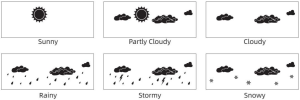
NOTE:
The accuracy of a general pressure-based forecast is about 65-70%. Forecasts are not guaranteed.
It may not necessarily reflect the current situation.
Ice Alert
The snowflake icon will appear on the LCD when the outdoor temperature is lower than 1℃/33.8℉.
MAX/MIN
- In normal display mode, press the 【MAX/MIN】buttonswitchingbetween maximum and minimum value.
NOTE: If there is no valid operation within 10 seconds, it will automatically return to the normal display mode.
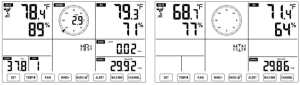
To View the Accumulated MAX/MIN
Display Feel like, Wind Chill, Heat Index, DewPoint Max/Min Values
- When the max values are displayed, press the 【TEMP/ 】 button to interchange viewing the Outdoor temperature → Feel like→WindChill →Heat Index → Dew Point → Outdoor temperature.
- When the min values are displayed, press the 【TEMP/ 】 button to interchange viewing the outdoor temperature → Feel like →WindChill →Heat Index → Dew Point → Outdoor temperature.
Display Wind Speed, Wind Gust Max Values
When the max values are displayed, press 【WIND/+】buttontointerchange viewing between the AVERAGE and GUSTwindspeeds.
- Display Rain Rate, Daily Rain, Weekly Rain, and Monthly Rain Max Values. When the max values are displayed, press the 【RAIN】buttontointerchange viewing Rain Rate → Daily Rain → Weekly Rain→Monthly Rain.
- Display Absolute and Relative Pressure Max/Min Values.
- When the max values are displayed, press 【BARO/-/ 】button to interchange viewing between Absolute and Relative pressure.
- When the min values are displayed, press 【BARO/-/ 】button to interchange viewing between Absolute and Relative pressure.
Display indoor and other channels sensor temperature and humidity, Max/Min values.
- When the max values are displayed, press the 【CHANNEL】button to interchange viewing indoor and paired outdoor sensor(s) temperature and humidity.
- When the min values are displayed, press the 【CHANNEL】button to interchange viewing indoor and paired outdoor sensor(s) temperature and humidity.
NOTE: If the other channel sensors were paired, the other channel’s max/min temperature and humidity values could be shown. If they were not paired, the display would only show the current indoor max/min temperature and humidity values.
To Clear the MAX/MIN Data Record
- To clear the max value, press and hold the 【MAX/MIN】button for over 2 seconds while max values are displayed.
- To clear the min value, press and hold the 【MAX/MIN】button for over 2 seconds while min values are displayed.
HI/LO ALERT SETTING
View the Alert Setting
- In normal display mode, press the 【ALERT】button to switch between the I alert and Low alert setting value.
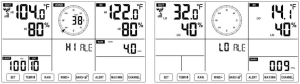
Set the Alert
- In normal display mode, press and hold the 【ALERT】button for over 2 seconds to enter the alert setting mode.
- Press 【WIND/+】button and 【BARO/-/ 】 button to adjust the value up or down, then press 【TEMP/ 】button to turn on/off the alert.
- Press 【ALERT】button to confirm and jump to next setting.
- The icon will display when the alert is on.
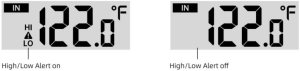
- To exit the alert setting mode anytime, press the 【LIGHT/SNOOZE】button. The Hi/Lo alert setting order is shown below:
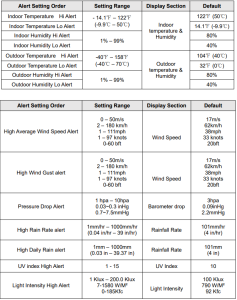
To Silence the Hi/Lo Alert Alarm
Press the 【 LIGHT/SNOOZE】button on top of the display console to silence the alarm, or it will automatically turn off after one minute.
NOTE: Once the alert is triggered, the alarm will sound for one minute, and the associated alert icon and weather readings will flash. Suppose the alarm automatically shuts off after one minute instead of being manually shut off. In that case, the associated alert icon and readings will continue flashing until the reading is out of the alert range. The weather alert alarm will go off once the readings fall into the alert range again.
BACKLIGHT
Display Backlight
With an AC Adapter
The backlight can only be continuously on when the AC adapter is permanently on. It can be temporarily turned on when the AC adapter is disconnected. Press the 【 LIGHT/SNOOZE】button to adjust the backlight brightness: High, Low, and without AC Adapter.
Press the 【 LIGHT/SNOOZE】button to turn on the backlight for 15 seconds temporarily.
LOW BATTERY INDICATOR
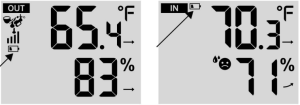
Suppose the low battery indicator icon is displayed in the outdoor temperature and humidity section or the corresponding CH section of the LCD console display. In that case, this indicates that your wireless weather sensor(s) batteries are running low and should be replaced. Make sure to replace all batteries at the same time.
FACTORY RESTART THE WIRELESS WEATHER STATION
If there is a malfunction, the Factory Restart is a great way to return your station to “out of the box” condition.
1.) Remove all power (batteries and AC adapter) from the outdoor sensors and the weather station.
2.) Follow the operation “SETTING UP THE WEATHERSTATION” to pair the sensor.
WEATHER STATION CARE AND MAINTENANCE
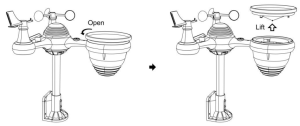
1. Clean the rain gauge every 3 months. Rotate the funnel counterclockwise and lift it to expose the rain gauge mechanisms. Clean it with a damp cloth. Remove any dirt, debris, and insects. If bug infestation is an issue, spray the sensor lightly with insecticide.
2. Clean the Light Intensity/ UV sensor and solar panel every 3 months with a damp cloth.
3. When replacing the batteries, apply a corrosion preventive compound on the battery terminals.
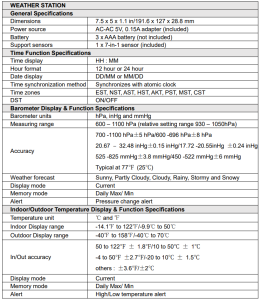
SPECIFICATION
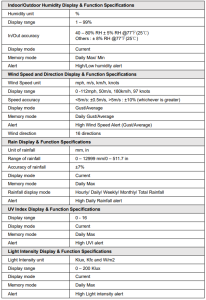
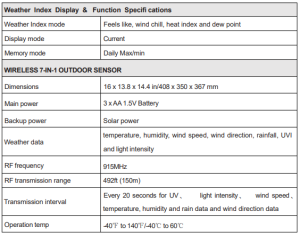
FCC STATEMENT
This device complies with part 15 of the FCC Rules. Operations are subject to the following two conditions:
This device may NOT cause harmful interference.
This device must accept any interference received, including interference that may cause undesired operation.
NOTE: This equipment has been tested and found to comply with the limits for a Class B digital device, under Part 15 of the FCC Rules. These limits are designed to protect reasonably against harmful interference in a residential installation. This equipment generates — and can radiate — radio frequency energy and, if not installed and used per the instructions, may cause harmful interference to radio communications. However, there is no guarantee that interference will not occur in a particular installation. Suppose the equipment does not cause harmful interference to radio or television reception, which can be determined by turning the equipment off and on. In that case, the user is encouraged to try to correct the interference by one or more of the following measures:
- Reorient or relocate the receiving antenna.
- Increase the separation between the equipment and the receiver.
- Connect the equipment to an outlet on a circuit different from that to which the receiver is connected.
- Consult the dealer or an experienced radio/TV technician for help.
WARNING: Changes or modifications to this unit not expressly approved by the party responsible for compliance could void the user’s authority to operate the equipment.
Made In China
Recommended For Your Project
VEVOR 7-in-1 Wireless Weather Station, 7.5 in Large Color Display Manual
Reviews
There are no reviews yet.