
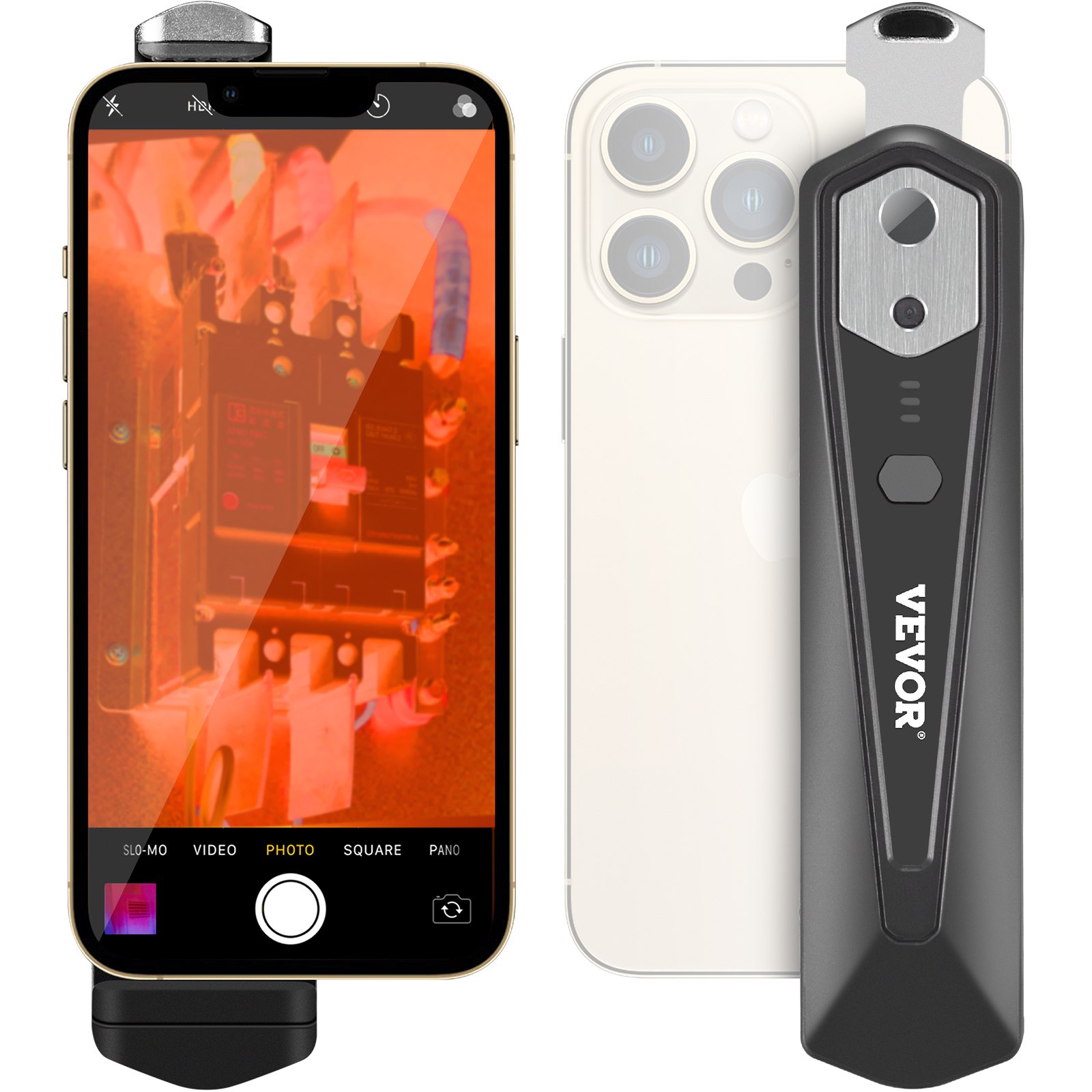
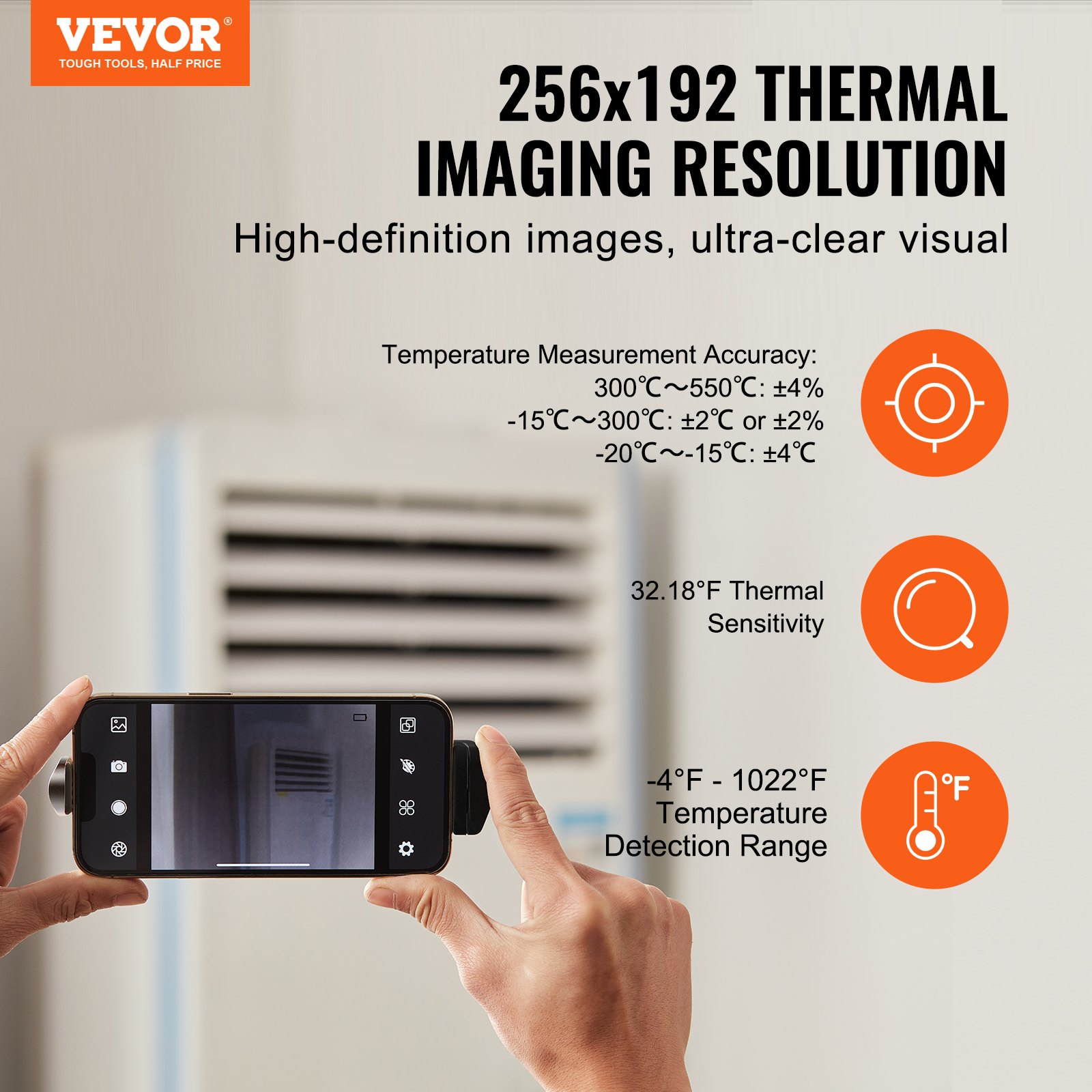
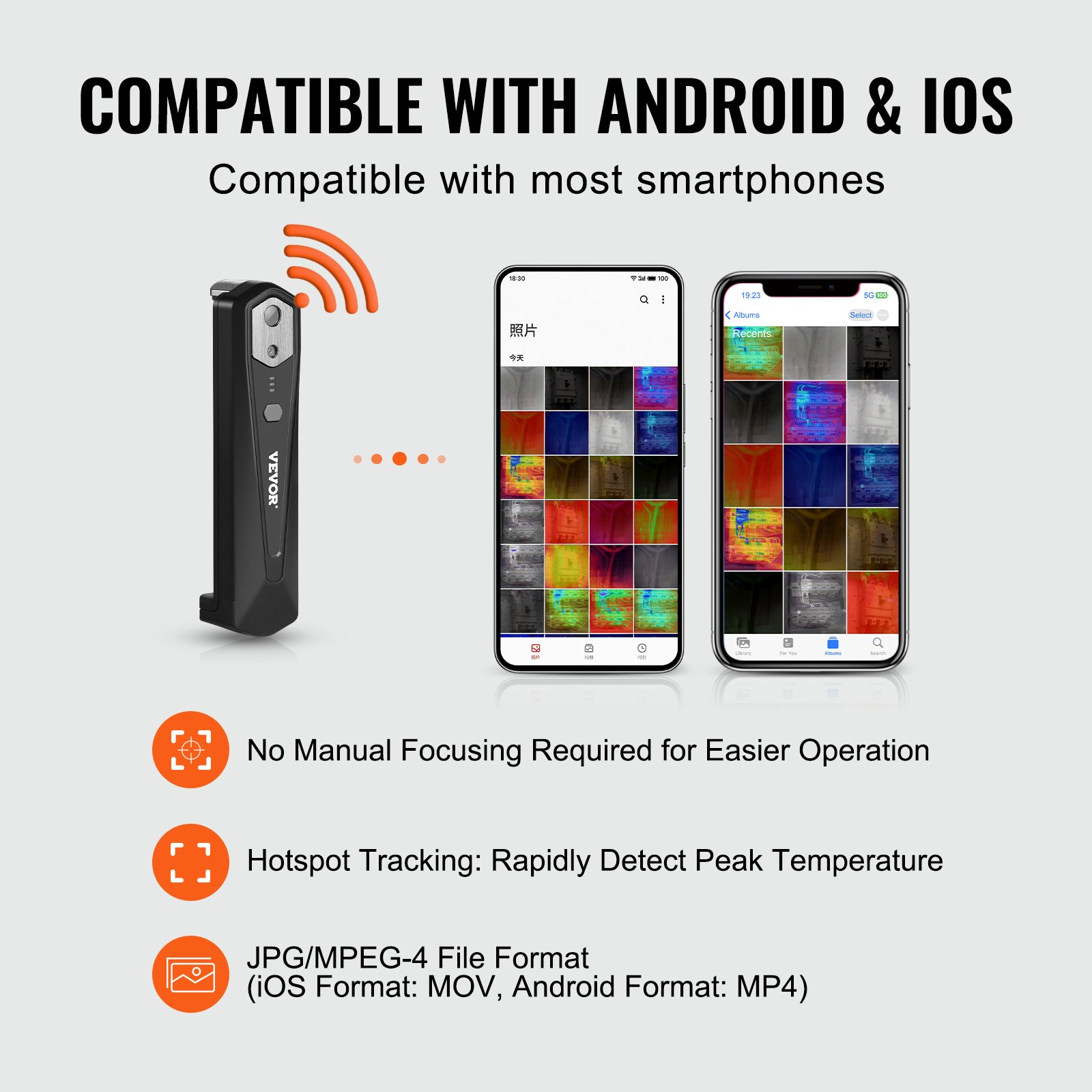
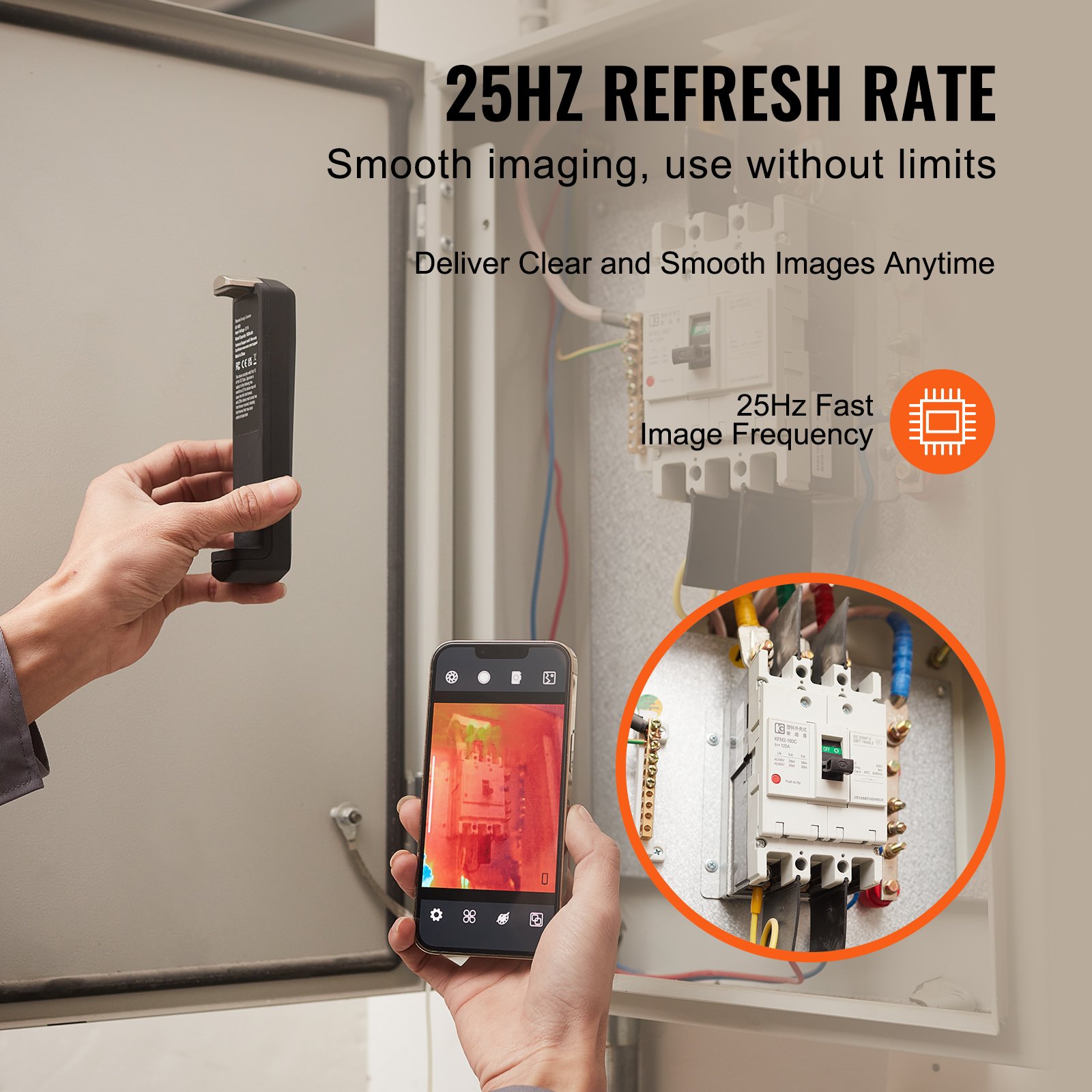
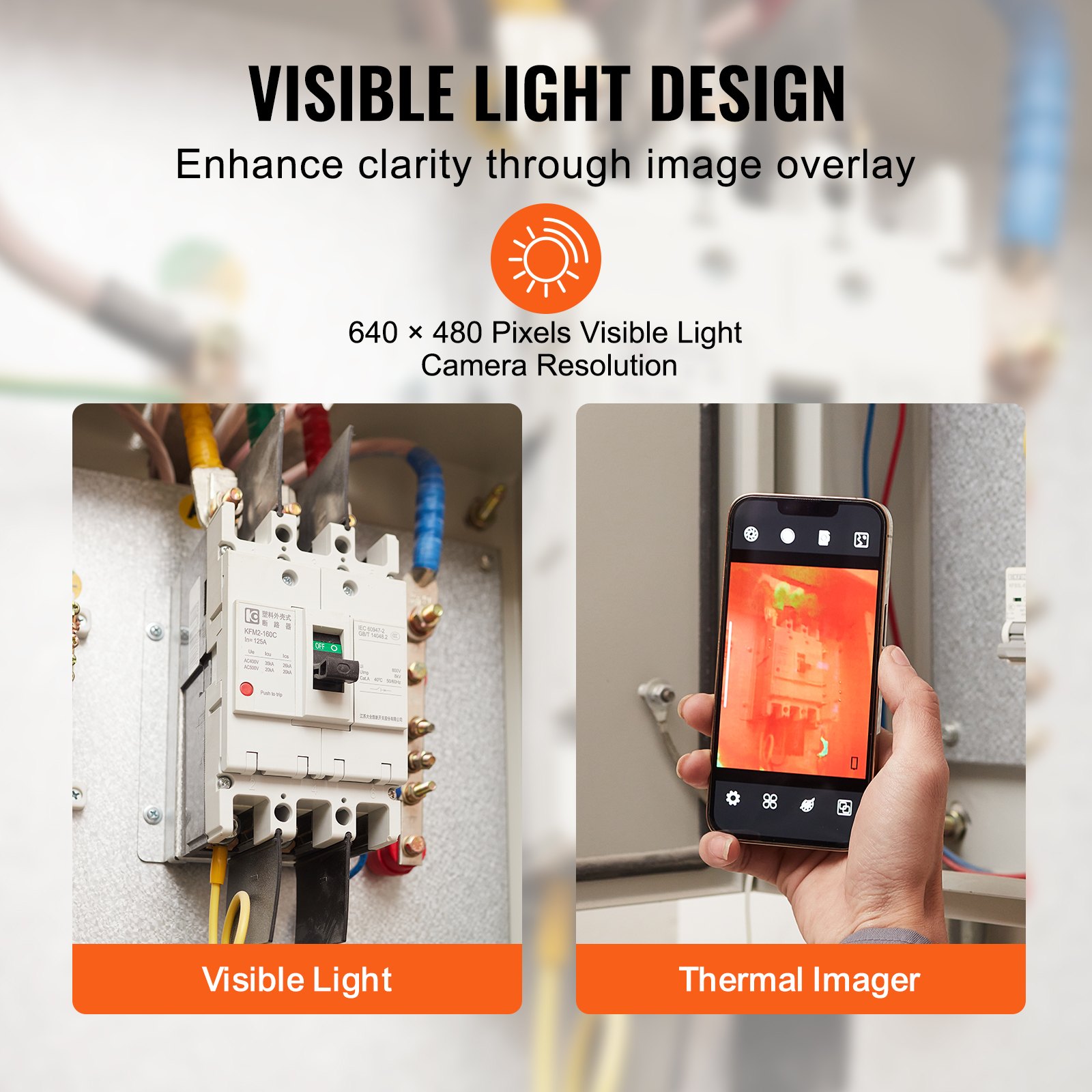
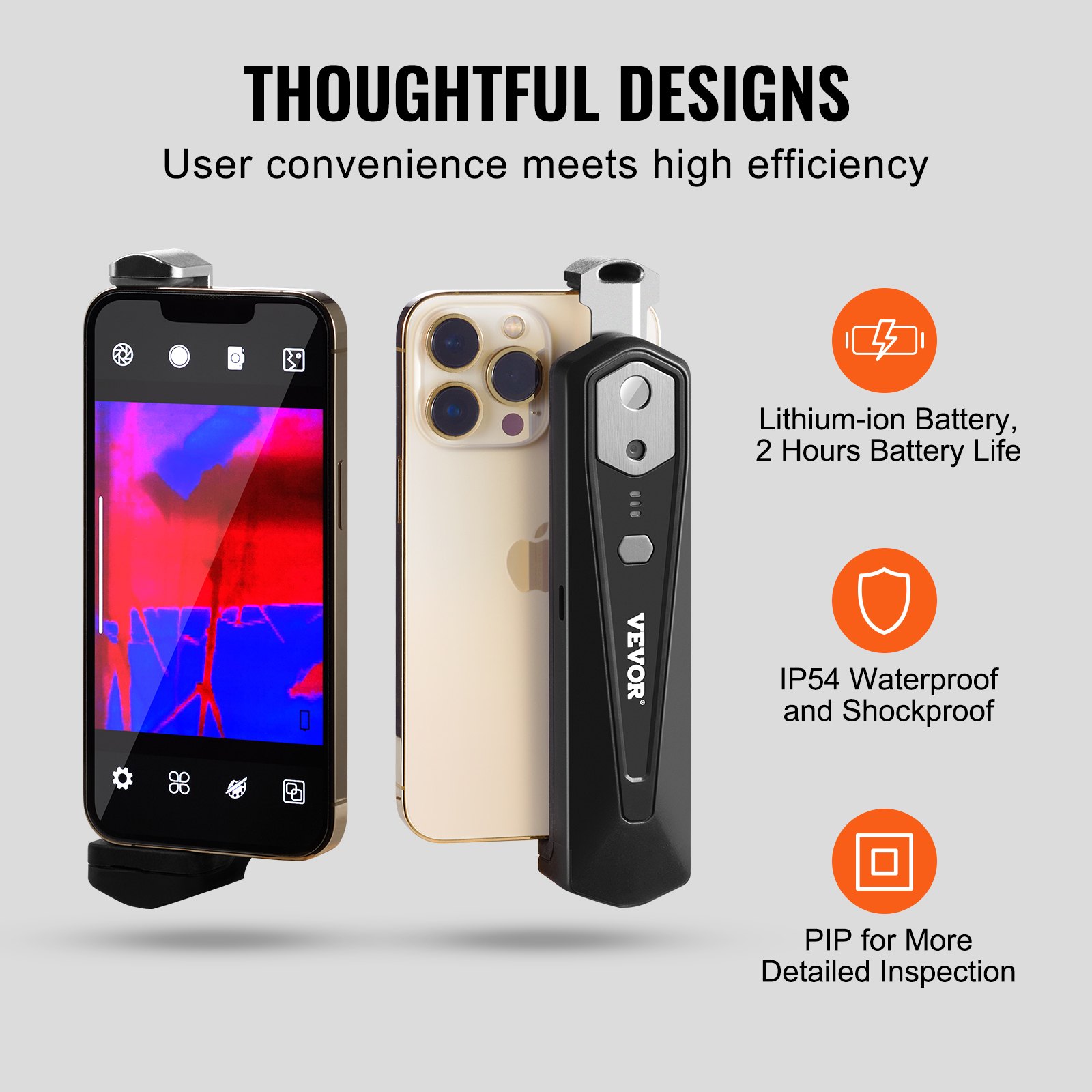
Unlock the full potential of your VEVOR Thermal Imaging Camera for Android & IOS with our comprehensive product manual. This high-resolution 256 x 192 IR thermal imager, equipped with WiFi and a visual camera, offers unparalleled performance with a 25Hz refresh rate and a temperature range of -4°F to 1022°F.
Our manual is meticulously designed to guide you through every step of the setup, troubleshooting, and optimization processes, ensuring you get the most out of your device.
Whether you are a professional or a first-time user, our user-friendly manual provides detailed instructions and valuable tips, making the operation of your thermal camera seamless and efficient. Download now and enhance your thermal imaging experience with ease.
VEVOR Thermal Imaging Camera User Manual
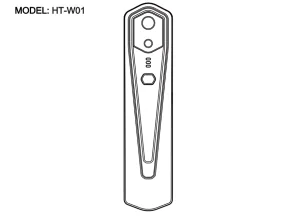
Precautions
Please read all the following information before using your device to protect you and others from injury or damage to your device.
(1) Do not expose the product to the sun and other high-intensity radiation sources
(2) Do not touch or collide the detector window and lens with your hands or other objects;
(3) Do not touch the device and USB interface with wet hands;
(4) Do not scrub your equipment with thinner.
(5) Please pay attention to preventing static electricity.
(6) Do not disassemble the equipment. If there is any fault, don’t hesitate to contact our company for repair by professional personnel.
Product Summary
Application scenes
To use this mobile phone infrared thermal imager, you need to download and install the mobile phone infrared thermal imager “HT-W01 Wireless WIFI Mobile Thermal Imager” APP.
Through this APP, you can achieve infrared observation and temperature measurement functions.
2.2 Major functions
The following functions are to be achieved:
- Open the applied software for a mobile phone infrared thermal imager to achieve infrared observation and measurement.
- To perform infrared temperature measurement and temperature analysis;
- Shooting and video recording;
- Motion control and parameter setting for your mobile phone infrared thermal imager.
Product Structures
Thermal Imaging Camera Structure Introduction
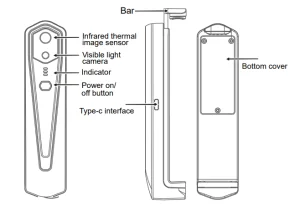
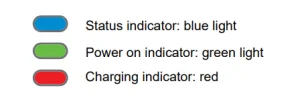
Description of indicators
Thermal Imaging Camera Product Application
Device power on
Long-press the Power on/off button for 1 second, and the device is powered on. The power on indicator is normally on.
After the device is powered on for 15 seconds, you can search WIFI
Device power off
Long-press the power on/off button for over 2 seconds, and all indicators will be out.
Long-press the power button for over 6 seconds in the power-on state to force power off, and all indicators will be out.
Device charging
Use TYPE-C interface data cords for charging. The charging indicator usually is on. After it is fully charged, the charging indicator is not on.
Device connection
Connecting WIFI
- Open your mobile phone’s Wi-Fi connection screen, and find the WIFI name prefixed with HT-W01-;
- Enter the Wi-Fi password 12345678 and connect it.
- (3) After the Wi-Fi connection becomes successful, go to the APP, and click on the “ play” button to start connecting the device.
Play button: After clicking it, it starts to play images, and you can perform related operations.
- After the Wi-Fi connection is successful, and when the device is disconnected, click to reconnect the device.
- After a successful connection, “ play button” and “ unconnected” will disappear.
- The device fails to connect to your mobile phone, and the status indicator flashes at a low frequency (on for 1s, and off for 1s)
- After the device connects to your mobile phone, the status indicator flashes highly (on for 0.5s, and off for 0.5s).
Thermal Imaging Camera Software Operation
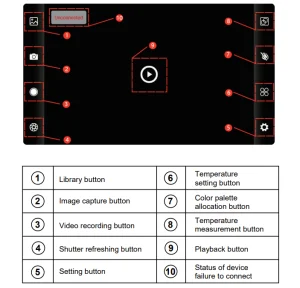
Software Interface
Library, shooting, and video recording
(1) Click the library button: Click to view images and videos;
Enter the image list page
- Long-press the image or click on the icon in the upper-right corner to be able to delete image files;
- Click on the image to preview single images, and you can preview the previous/last image by sliding left/right;
- When you preview single images, open/close your two fingers to zoom in/out on image contents, and long-press it to be able to view detailed information on the images;
Enter the video list page
- Long-press the image or click on the icon in the upper right-hand corner to be able to delete video files;
- Click on videos to play the video file.
(2) “Photo icon” shooting: to save the current screen; Photo saving position: to open the images you require in the library, and you can view the location of the image.
(4) “Video recording icon” video recording: Click on it to start video recording, and click on it once again to end video recording; The position for saving video recording is the same as that of an image.
Shutter refreshing image.
“Shutter icon” shutter refreshing: Click on to refresh the baffle.
Temperature Measurement Analysis
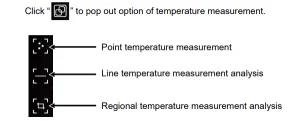
- Point temperature measurement: click the point temperature measurement button, and the screen will display the temperature information of three points, namely the central temperature point, the highest temperature point, and the lowest temperature point.
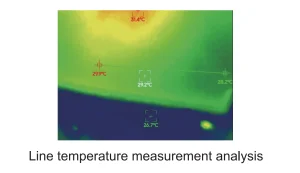
Click the screen at this time, and the temperature information of the user-defined point will be added. - Line temperature measurement analysis: drag with your fingers and draw a horizontal line on the screen. It will automatically analyze the maximum temperature and minimum temperature of the horizontal line and identify relevant information.
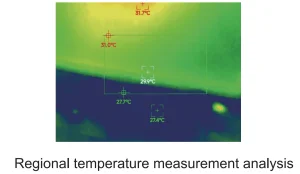
(3) Regional temperature measurement analysis: drag with your fingers and draw a rectangle on the screen. it will automatically analyze the maximum temperature and minimum temperature in the rectangular area, and identify relevant information, as shown in the following figure:
Color palettes
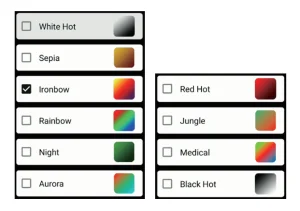
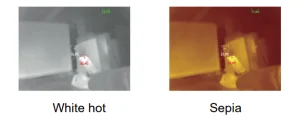
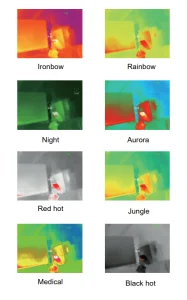
Click on the color palette icon to pop up the color palette interface. You can switch among 10 color palettes, such as white heat, glowing gold, iron red, rainbow, shimmer, aurora, red heat, jungle, medical, and black heat, as shown in the figure below.
The display effects of 10 color palettes is shown as follows:
Temperature Measurement Setting
Click on the settings icon to pop up the settings interface. You can set the temperature unit, temperature measurement range, emissivity, temperature measurement distance, brightness, contrast, fusion, picture in picture, overlap, time-domain noise reduction, spatial noise reduction, and detail enhancement, or reset all
parameters, as shown in the figure below:
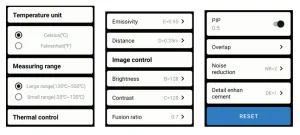
Setting
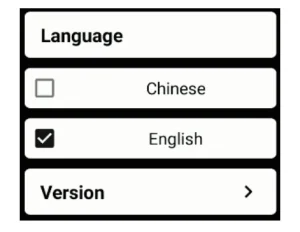
Click on the “ settings” icon to pop up the settings interface for language selection.
Chinese or English can be selected for languages, as shown in the figure below.
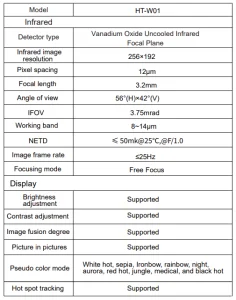
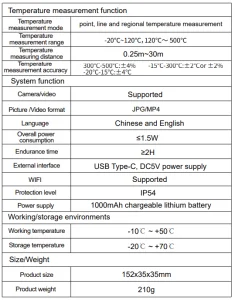
Thermal Imaging Camera Technical Parameters
Recommended For Your Project
VEVOR Thermal Imaging Camera for Android & IOS Manual


Reviews
There are no reviews yet.